
How to make the macOS menu bar transparent — or solid — on Tahoe
Updated September 5, 2026
macOS 26 Tahoe ships the menu bar with no background: the text and icons sit straight on the wallpaper or the window beneath. One toggle brings a bar back, one accessibility switch makes it opaque, and an app gives you the exact color and opacity in between. This guide covers all three directions — clearer, solid, and something between — on a Mac running Tahoe.
Make the menu bar transparent
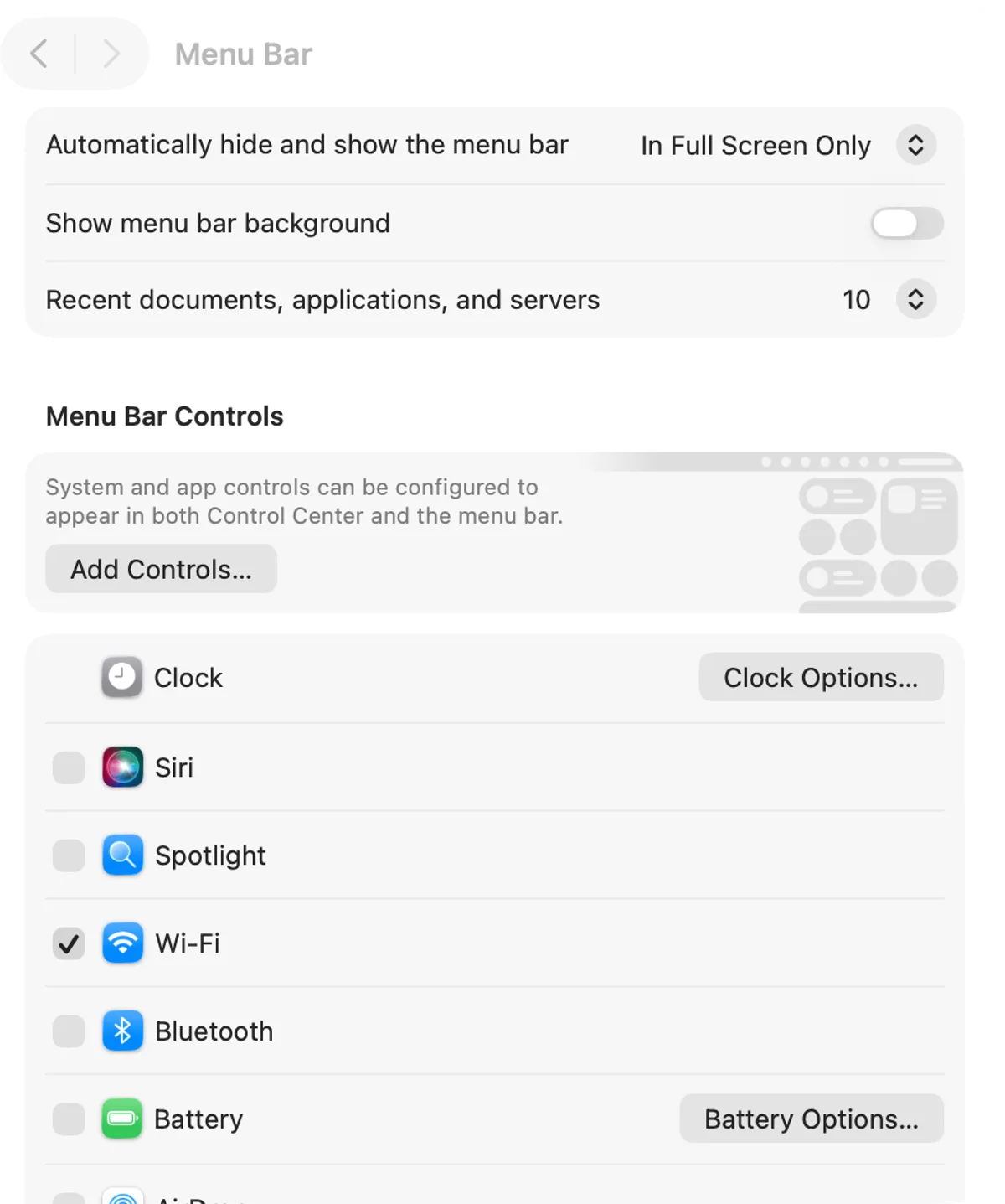
On Tahoe the clear bar is the default, so if yours has a background, one of three things turned it on:
- System Settings › Menu Bar › Show menu bar background — off is transparent.
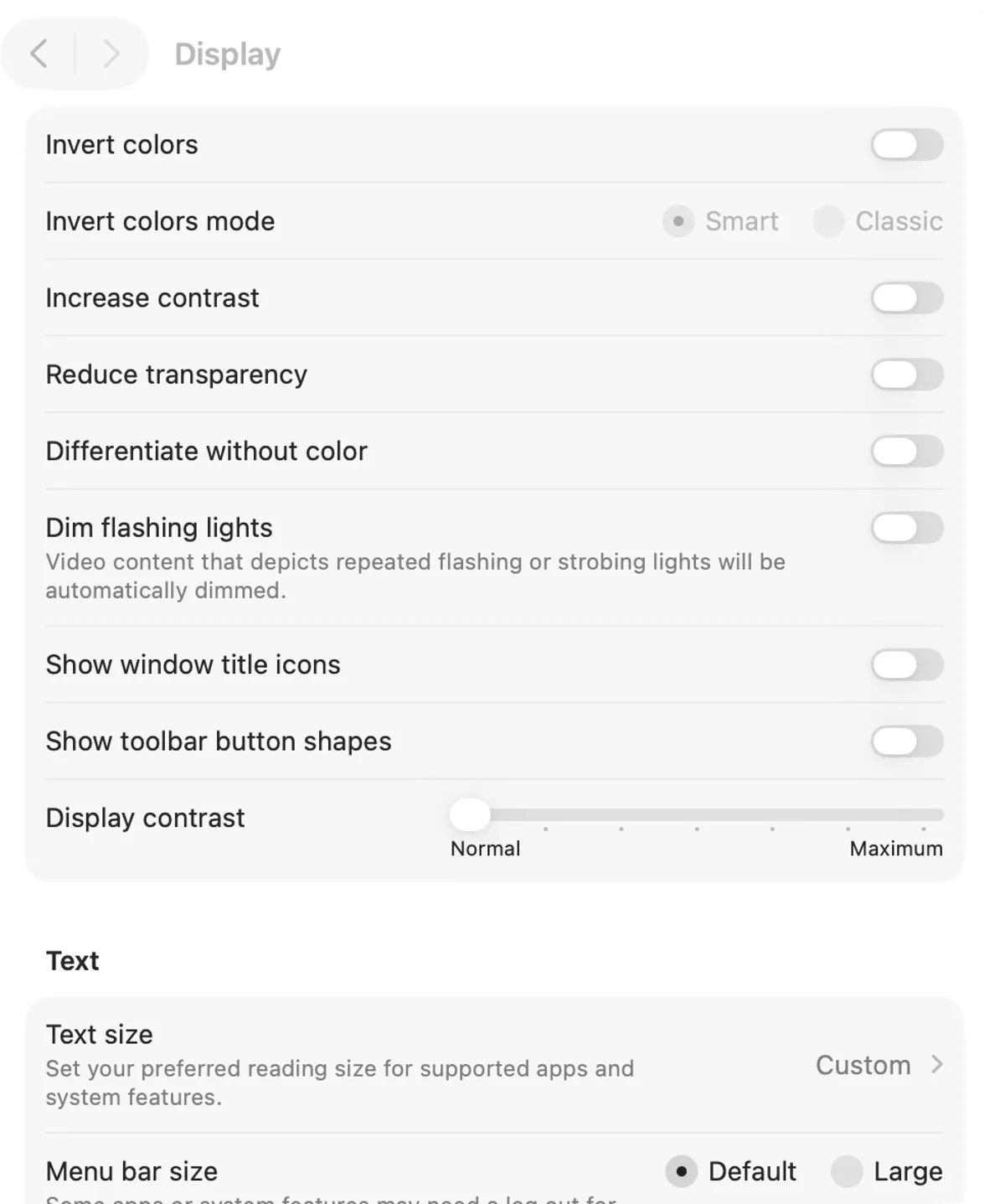
- System Settings › Accessibility › Display › Reduce transparency — off. On, every translucent surface goes flat, the bar included.
- On macOS 26.1 and later, System Settings › Appearance › Liquid Glass — Clear is the more transparent of its two options; Tinted adds opacity everywhere.
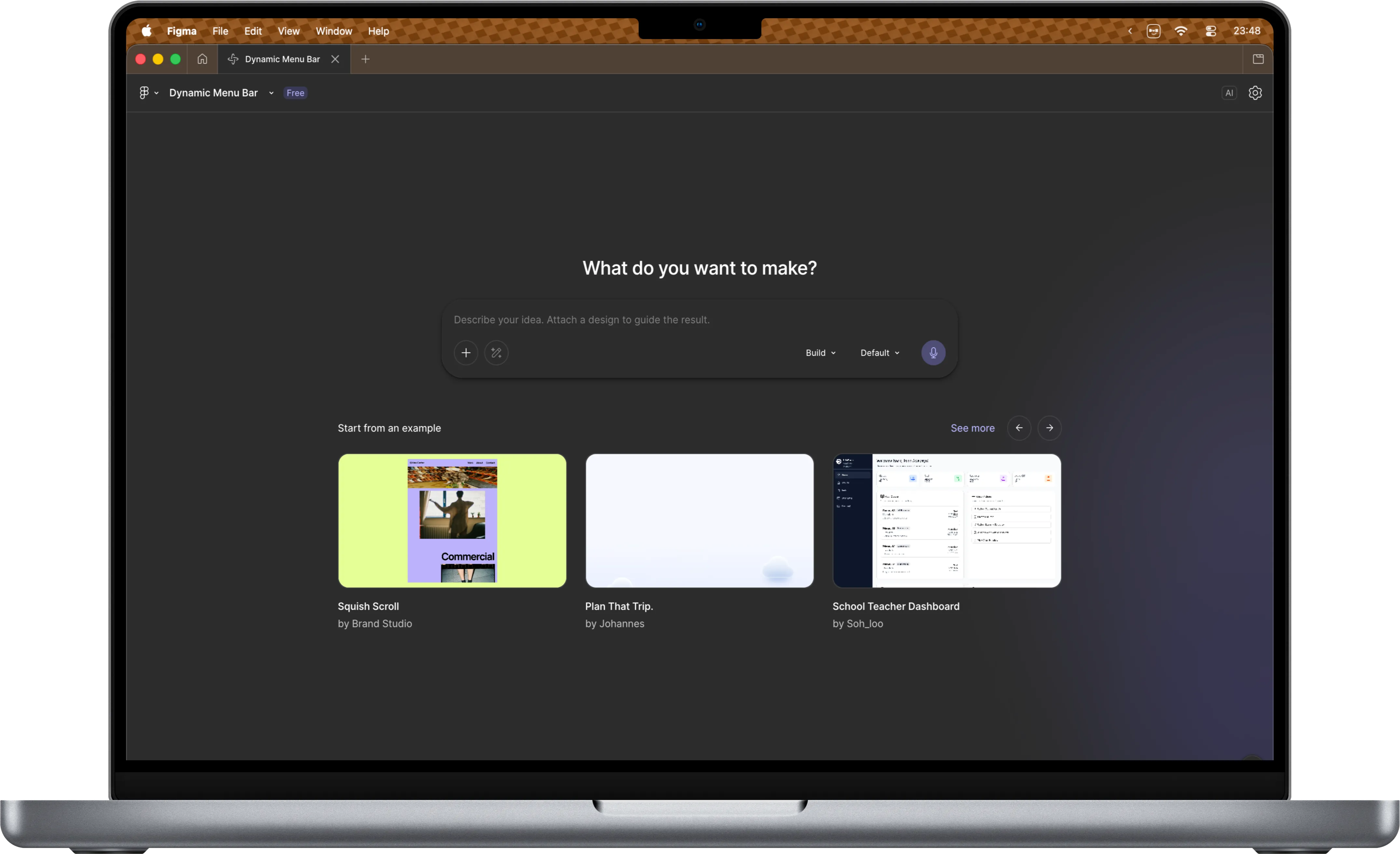
With Dynamic Menu Bar installed, its master switch turns the overlay off entirely — a global shortcut can do it from anywhere — and for a bar that is only half there, the Fade style with a low opacity at the top and bottom keeps a hint of color over a clear bar.
Make the menu bar solid
Three steps up in opacity, all in System Settings:
- Show menu bar background (Menu Bar): a translucent, blurred strip — the bar most people remember from earlier releases.
- Liquid Glass › Tinted (Appearance, macOS 26.1 and later): glass surfaces, the bar’s background included, become more opaque without going flat.
- Reduce transparency (Accessibility › Display): a fully opaque bar, light gray or dark gray with the appearance, and nothing else translucent either.
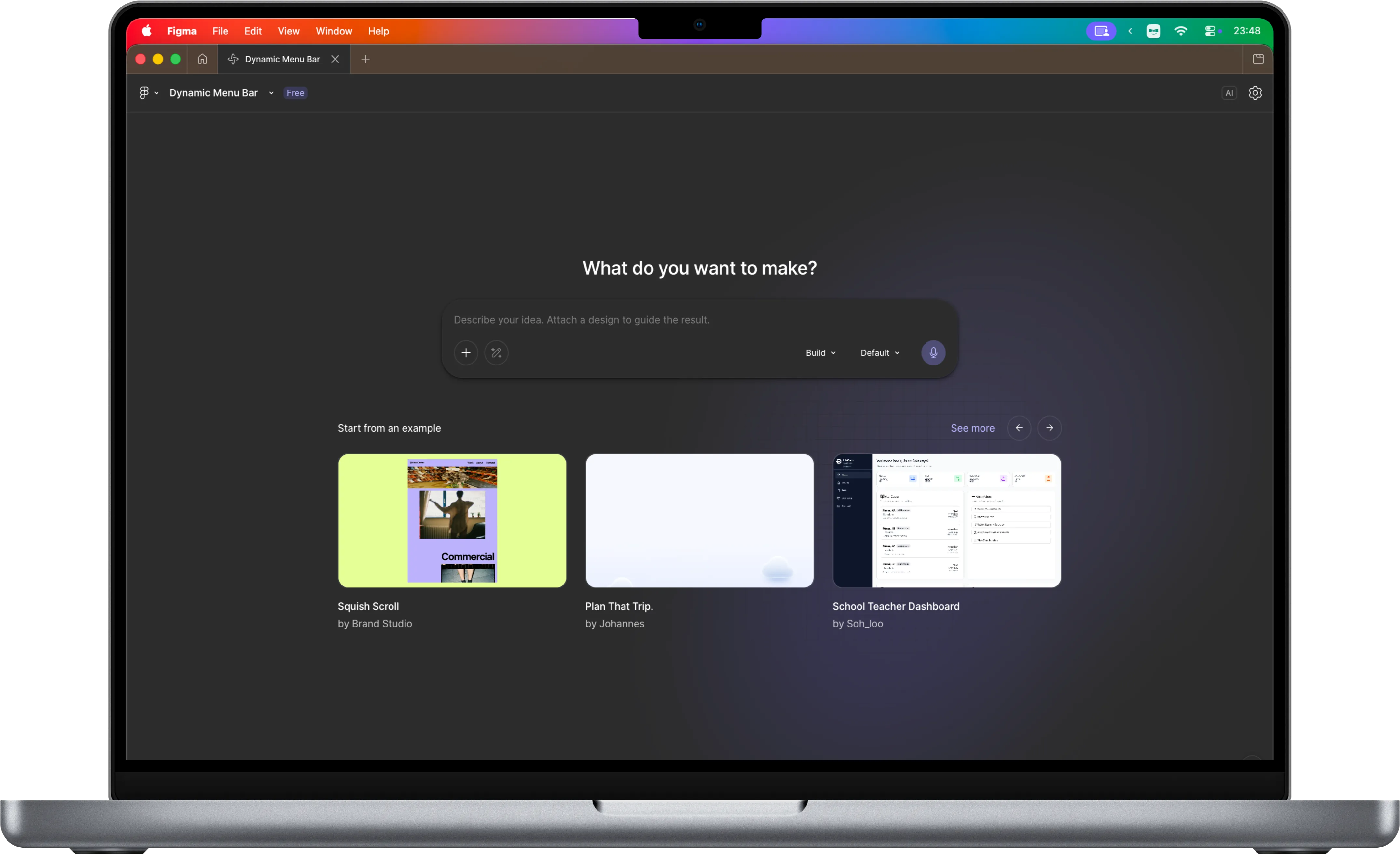
None of them lets you choose the color, and the last one changes the whole system to get one solid bar. With Dynamic Menu Bar, choose the Solid style at full opacity in the Full Bar shape and the bar is one even color of your choosing, with everything else on the Mac left as it was. Turn on Always on so the bar stays solid over an empty desktop too, with the desktop under it rendered as black, transparent or blur. The guide to changing the menu bar color goes through the colors themselves.
Something in between
- Background blur frosts the bar with an amount you set, so it reads as a surface without hiding what is behind it — Tahoe’s own background, but with the amount under your control.
- Fade runs from one opacity at the top to another at the bottom, so the bar is solid at the edge of the screen and clear where it meets the window.
- Live makes the bar a reflection of the screen under it: solid where the content is, and in the content’s own colors.
Full screen, menus and the notch
- Automatically hide and show the menu bar (System Settings › Menu Bar) decides whether the bar is on screen at all: Always, On Desktop Only, In Full Screen Only, or Never.
- In Dynamic Menu Bar’s Full Bar shape, the overlay can auto-hide under popovers, and sampling pauses while the pointer is in the menu bar, so an open menu never tints the bar.
- Around the notch, the Spread animation grows the bar out from it, a notch stroke can outline it, and the overlay can dissolve behind it.
The features page lists every Appearance and Behavior setting, and the guide to customizing the macOS menu bar covers the rest of System Settings › Menu Bar.
FAQ
Is the menu bar transparent by default in macOS Tahoe?
Yes. macOS 26 Tahoe draws no background behind the menu bar unless you turn on Show menu bar background in System Settings › Menu Bar.
How do I get the menu bar background back?
System Settings › Menu Bar › Show menu bar background. For a fully opaque bar, also turn on Reduce transparency under Accessibility › Display.
Why is my menu bar gray or black?
Either Reduce transparency is on, which makes the bar flat gray, or a dark wallpaper or window sits behind a transparent bar. Dynamic Menu Bar's Solid or Live styles replace that with a color you chose.
Can I make the menu bar one solid color?
Not with Apple's settings: the background toggle gives a blurred tint of what is behind it. Dynamic Menu Bar's Solid style at full opacity does exactly that.