
How to hide menu bar icons on a Mac
Updated October 9, 2026
To hide an icon in your Mac’s menu bar, hold the Command key and drag the icon out of the bar. On macOS 26 Tahoe and macOS 27 you can also turn icons off in System Settings › Menu Bar — the system’s own, like Wi-Fi, Bluetooth, Sound and Focus, and apps’ icons as well. Icons you added from Control Center come off through Control Center’s Edit Controls. This guide covers each way, the one icon that cannot be hidden, and the button a MacBook with a notch hides icons behind on macOS 27.
Command-drag it off the bar
The icons at the right end of the menu bar are what Apple calls status menus. To remove one quickly, press and hold the Command key and drag the icon out of the menu bar. Holding Command while you drag an icon along the bar rearranges them instead.
Turn it off in Menu Bar settings
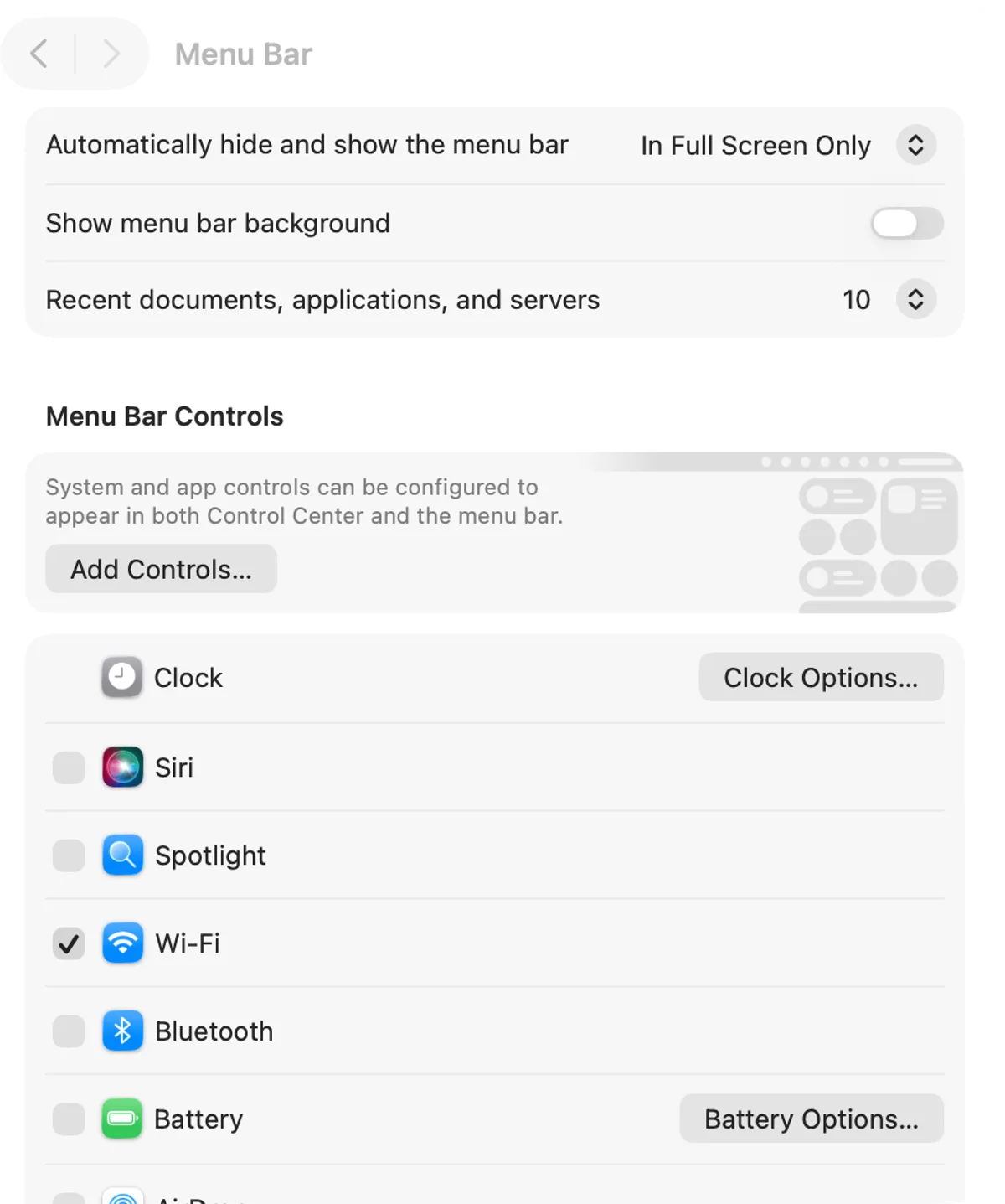
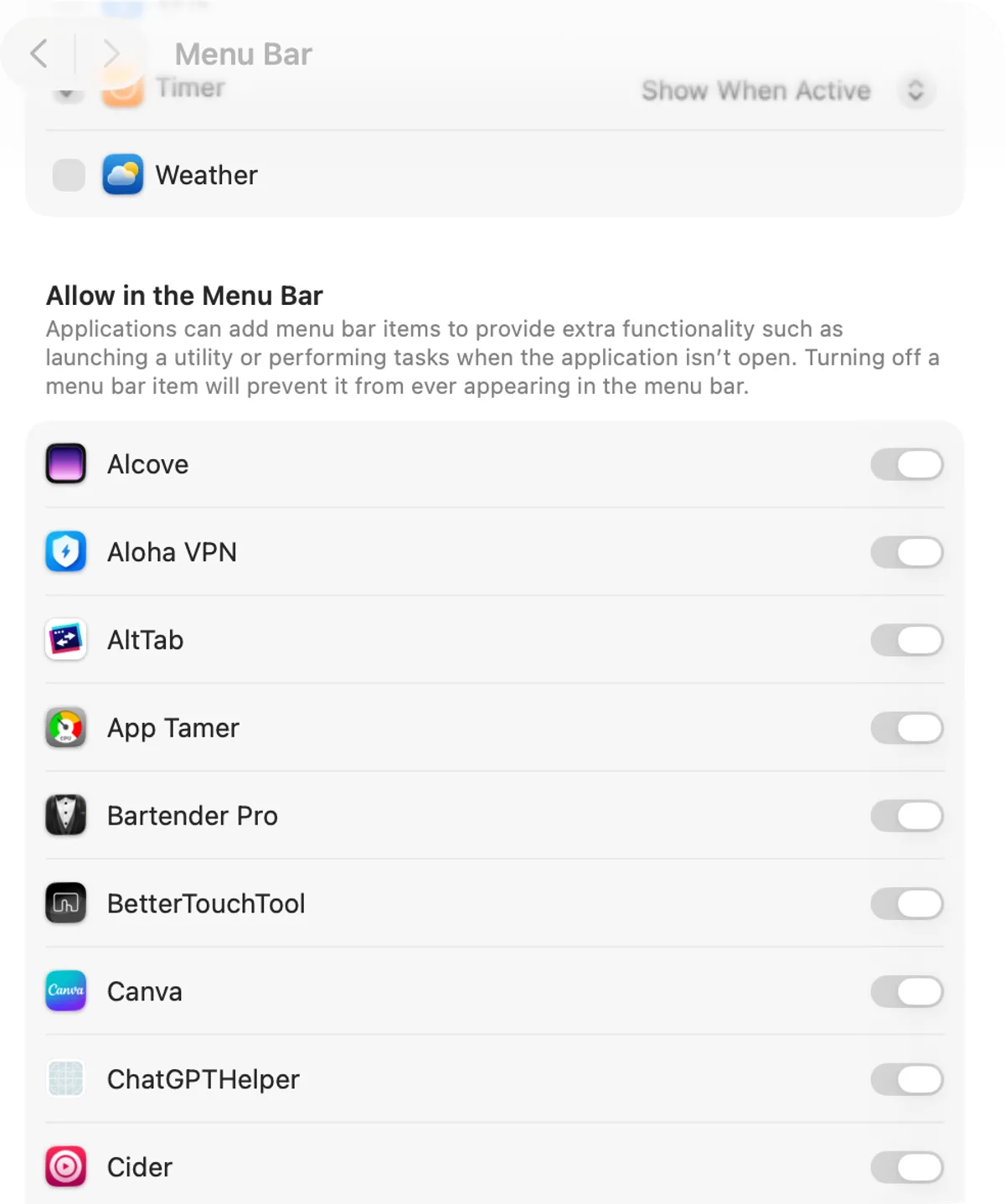
On macOS 26 Tahoe and macOS 27, choose Apple menu › System Settings, then click Menu Bar in the sidebar (you may need to scroll down). Two lists decide what shows in the bar:
- Menu Bar Controls has the controls that can appear in the bar, such as Siri, Spotlight, Wi-Fi, Bluetooth, Battery on a Mac laptop, Focus, Sound, Now Playing, Time Machine, VPN and Weather. Each has a checkbox: deselect an item to hide its icon.
- Allow in the Menu Bar has the apps that provide menu bar items, with a switch for each. Turn an app’s switch off and its icon leaves the bar.
Focus, Screen Mirroring, Display, Sound and Now Playing have a pop-up menu as well. Show When Active shows the icon only while the item is active; Always Show keeps it there all the time. That suits an icon you want only when it matters, like Screen Mirroring while you mirror.
Icons from Control Center
Some icons get into the bar from Control Center rather than from Menu Bar settings — Quick Note, Put Display to Sleep or Color filters, for example. To remove one, click Control Center in the menu bar, click Edit Controls, then drag the item off the menu bar. The same screen puts it back: drag the item from the Controls Gallery or Control Center to the menu bar.
The clock stays
Apple’s Menu Bar settings say the clock is always shown in the menu bar, so it has no checkbox to deselect. Clock Options, next to it, changes how the date and time are displayed.
Icons macOS 27 hides beside the notch
On a MacBook with a notch, macOS 27 can keep some status items out of sight behind a button in the menu bar. The button’s name is Show Hidden Menu Bar Items; click it and the hidden items appear, click it again and they fold back. To take an icon out of the bar altogether, use the steps above. Mac menu bar disappeared? covers the other ways the notch can cover icons.
To hide some icons but keep them a click away, a menu bar manager such as Ice or Bartender does it: the icon managers are compared side by side.
Hide the whole bar instead
If the aim is a clean top edge rather than fewer icons, set System Settings › Menu Bar › Automatically hide and show the menu bar to Always: the bar itself hides until you move the pointer to the top of the screen. How to customize the macOS menu bar goes through the rest of that settings page.
Dynamic Menu Bar works on the other half of the look: it paints the bar behind the icons — the colors of the app in front when its window fills the area below the bar, or a color you pick — and leaves the icons themselves to macOS. Its Appearance settings show the styles. It does not hide or rearrange icons.
FAQ
How do I remove an icon from the menu bar on a Mac?
Hold the Command key and drag the icon out of the menu bar. On macOS 26 Tahoe and macOS 27 you can also turn it off in System Settings › Menu Bar: deselect a system item under Menu Bar Controls, or turn an app's switch off under Allow in the Menu Bar.
Can I hide the clock in the Mac menu bar?
No. Apple's Menu Bar settings say the clock is always shown in the menu bar. Clock Options changes how the date and time are displayed.
How do I get a hidden menu bar icon back?
An item you turned off in System Settings › Menu Bar comes back when you select it there again. An icon you removed through Control Center goes back through Control Center › Edit Controls: drag it from there to the menu bar.
What is the Show Hidden Menu Bar Items button on macOS 27?
On a MacBook with a notch, macOS 27 can keep some status items out of sight behind a button in the menu bar named Show Hidden Menu Bar Items. Click it and the hidden items appear; click it again and they fold back.