
How to hide the notch on a MacBook Air or Pro
Updated October 2, 2026
The notch on a MacBook can’t be removed: it is the camera housing, built into the screen’s bezel on MacBook Air with Liquid Retina display and MacBook Pro with Liquid Retina XDR display. What you can change is the menu bar around it: make that strip black and the notch disappears into it. On macOS 26 Tahoe and macOS 27 a black wallpaper does it for free, and an app can keep the bar black over every window. If what the notch hides is an app’s menus, Apple has a separate fix for that.
Make the bar black with the wallpaper
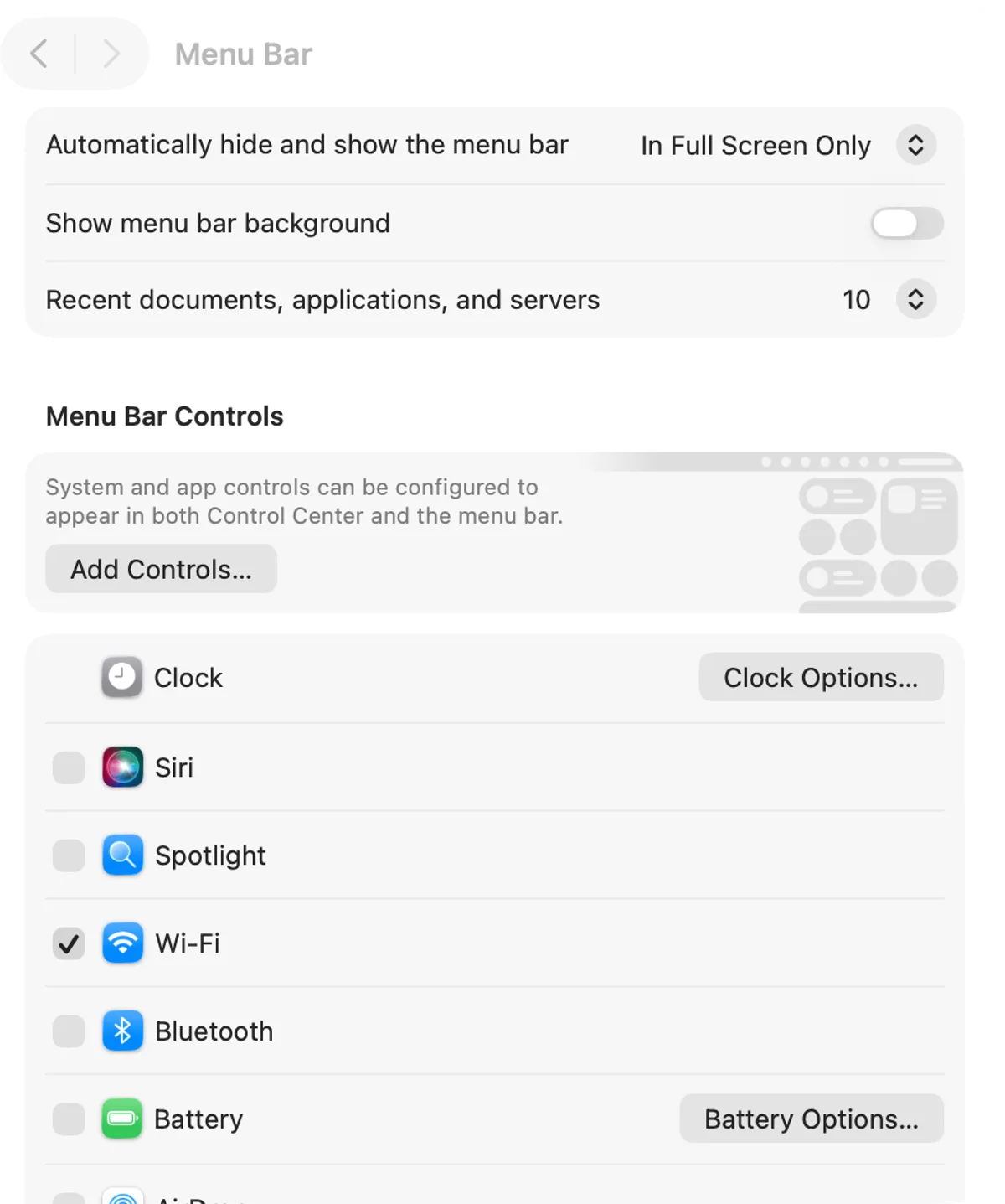
On macOS 26 Tahoe and macOS 27, System Settings › Menu Bar lets you show your wallpaper behind the menu bar instead of a background: with Show menu bar background off, the wallpaper shows behind the bar. A wallpaper that is black along its top edge therefore gives you a black bar around the notch.
- In System Settings › Menu Bar, turn off Show menu bar background.
- In System Settings › Accessibility › Display, keep Reduce transparency off: it replaces the transparent effect on some backgrounds with a solid one.
- In System Settings › Wallpaper, add a picture of your own that is black, or black along its top edge.
The simplest version is an all-black desktop; a picture with a black band across the top keeps the rest of the screen yours. Transparent or solid menu bar on Tahoe goes through the background setting and the ones around it.
If an app’s menus end up behind the camera
Apple’s own fix for menus and controls hidden by the camera is Scale to fit below built-in camera:
- Quit the app.
- In Finder › Applications, select the app and choose File › Get Info.
- Turn on Scale to fit below built-in camera.
When that app has menus or windows that would sit behind the camera, all open apps, or the apps that share its space, appear below the camera until you quit it. The option appears only for apps that have not been updated for the camera area.
Keep the bar black over every window
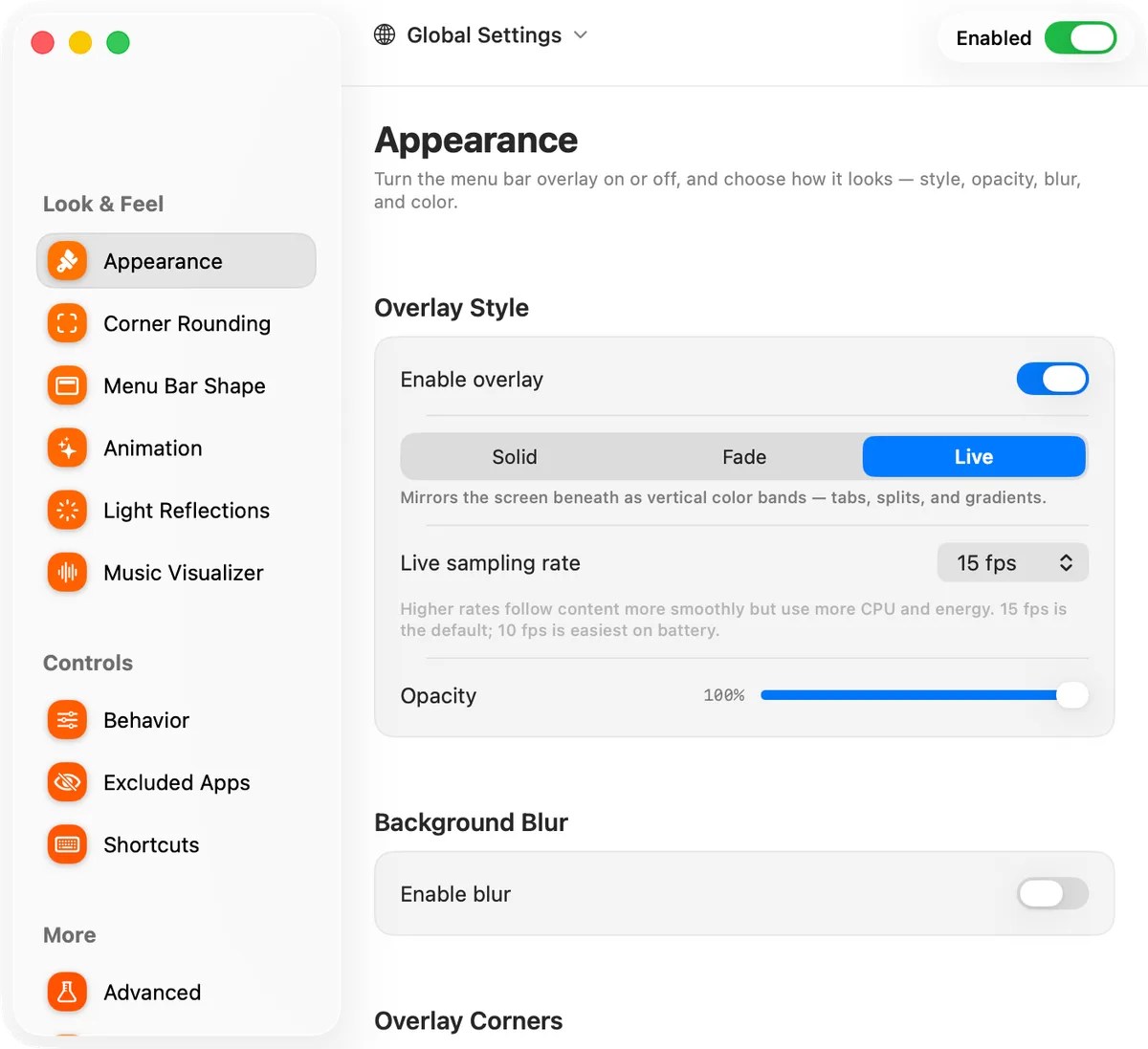
Dynamic Menu Bar paints the strip itself, so the bar can stay black whatever the wallpaper. In its Appearance settings, choose the Solid style and leave Auto-sample off, its default for Solid; the color well beside it starts at black, and shows while Multicolor and Hue drift are off. Opacity starts at 100%, and the default Full Bar shape covers the bar edge to edge. That colors the bar whenever the window of the app in front fills the area below it; turn on Keep overlay always on in Behavior, with Empty desktop appearance left at Black, and the bar stays black over the empty desktop as well. By default it also draws a hairline stroke along the bar’s edges; Add overlay stroke in Advanced turns it off. It draws beneath the bar’s text and icons and leaves them to macOS, so check that they stay readable on black. Menu bar managers such as Bartender and Ice can tint the bar a fixed color too.
Icons behind the notch
A black bar hides the notch, not the icons behind it: the bar’s color does not change how many fit beside the camera. Mac menu bar disappeared? covers turning off the ones you don’t need, and the best menu bar apps for macOS Tahoe compares the managers, Bartender and Ice among them.
FAQ
Can you remove the notch on a MacBook?
No. It is the camera housing, built into the screen's bezel on MacBook Air with Liquid Retina display and MacBook Pro with Liquid Retina XDR display. You can make the menu bar around it black, so it disappears into the bar.
What does Scale to fit below built-in camera do?
It is Apple's fix for an app whose menus or controls end up behind the camera. Turn it on in the app's Get Info window; when that app has menus or windows that would sit behind the camera, all open apps, or the apps that share its space, appear below the camera until you quit the app.