
Mac menu bar disappeared? How to get it back
Updated October 2, 2026
When the menu bar is gone from the top of a Mac’s screen, start at the top edge: move the pointer there. If the bar slides in, it is set to hide itself, or the app in front is in full screen, and one setting keeps it on screen. If it does not, the bar may be there but see-through, or the icons you miss may be hidden behind the notch. This guide covers each case on macOS 26 Tahoe and macOS 27, with the macOS 15 Sequoia location of the auto-hide setting.
Turn off auto-hide
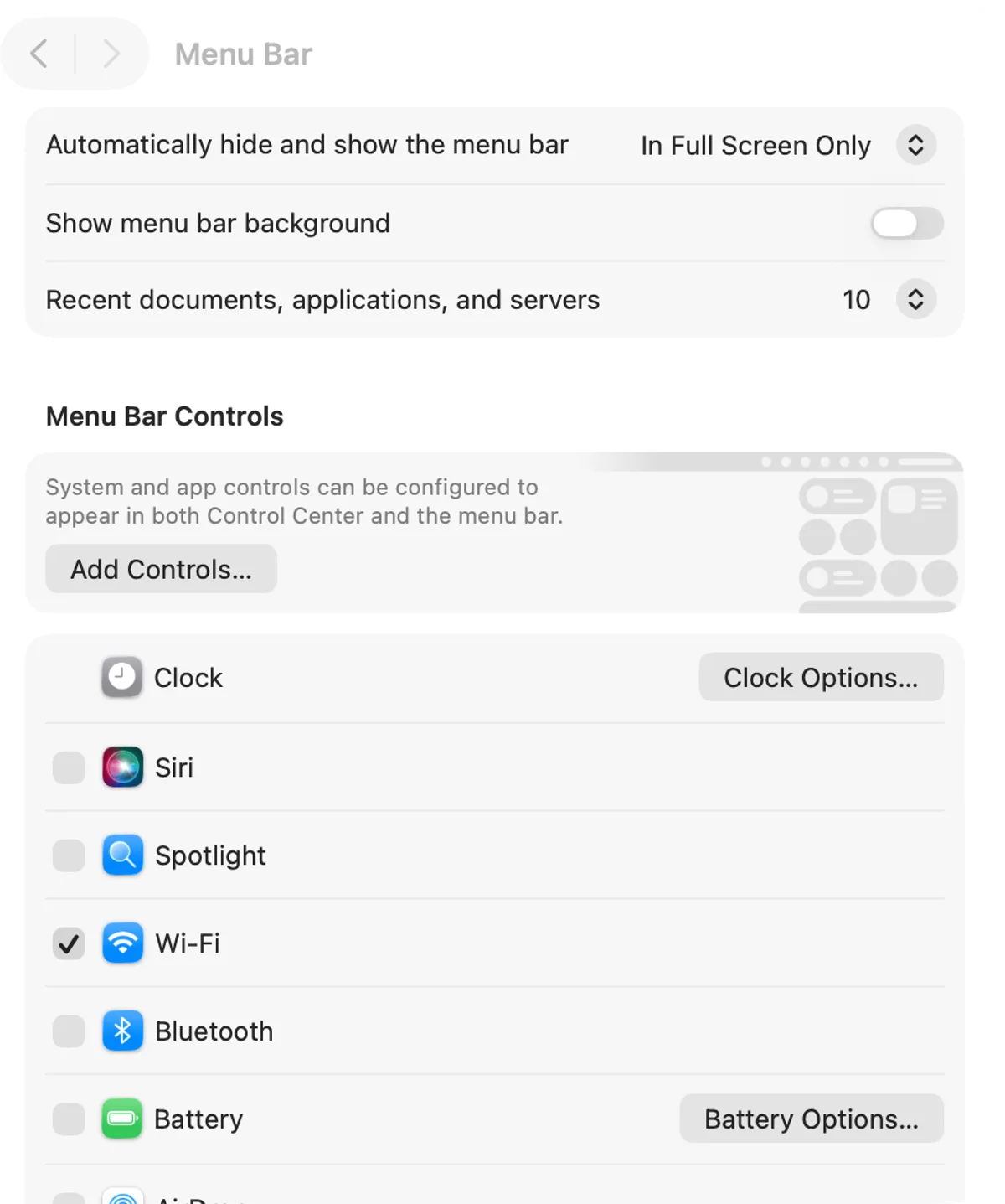
The menu bar can hide itself until the pointer touches the top of the screen. On macOS 26 Tahoe and macOS 27 the setting is in System Settings › Menu Bar: Automatically hide and show the menu bar, with four choices.
- Always hides it everywhere, on the desktop and in full-screen apps.
- On Desktop Only hides it when you are not using an app in full screen.
- In Full Screen Only hides it only while an app is in full screen.
- Never keeps it on screen all the time.
Choose Never and the bar stays put. On macOS 15 Sequoia the same setting, with the same four choices, is in System Settings › Control Center.
Full screen hides it
An app in full screen — the green button at the top left of its window, or ⌃⌘F — takes the whole display, and the menu bar slides away. Move the pointer to the top of the screen and it slides back while you work. To keep it visible in full screen too, set Automatically hide and show the menu bar to Never, as above.
To leave full screen, press ⌃⌘F again, or move the pointer to the top, hold it over the green button and choose Exit Full Screen. How to go full screen on a Mac covers the rest, including Fill, which fills the screen without a Space of its own.
It is there, but see-through
On macOS 26 Tahoe and macOS 27 the menu bar can have no background at all: with Show menu bar background off in System Settings › Menu Bar, the wallpaper shows behind it, so over a busy wallpaper the text can blend in and the bar looks gone. Turn the setting on to put a background back; transparent or solid menu bar on Tahoe goes through every step from clear to opaque.
Dynamic Menu Bar paints that strip instead. When the window of the app in front fills the area below the bar, it shows that window’s colors (Live, the default style) or a color you pick (Solid); with Keep overlay always on it also keeps a bar over the empty desktop — black, transparent or blur. Its Appearance settings show the styles. It draws beneath the bar’s text and icons and leaves them to macOS.
Icons are missing
On a MacBook Air or MacBook Pro with a notch, the camera sits in the middle of the menu bar, and menu bar items can end up hidden behind it.
- If an app’s own menus or items are covered, quit the app, select it in Finder › Applications, choose File › Get Info, and turn on Scale to fit below built-in camera. Until you quit that app, the menu bar and windows sit below the camera.
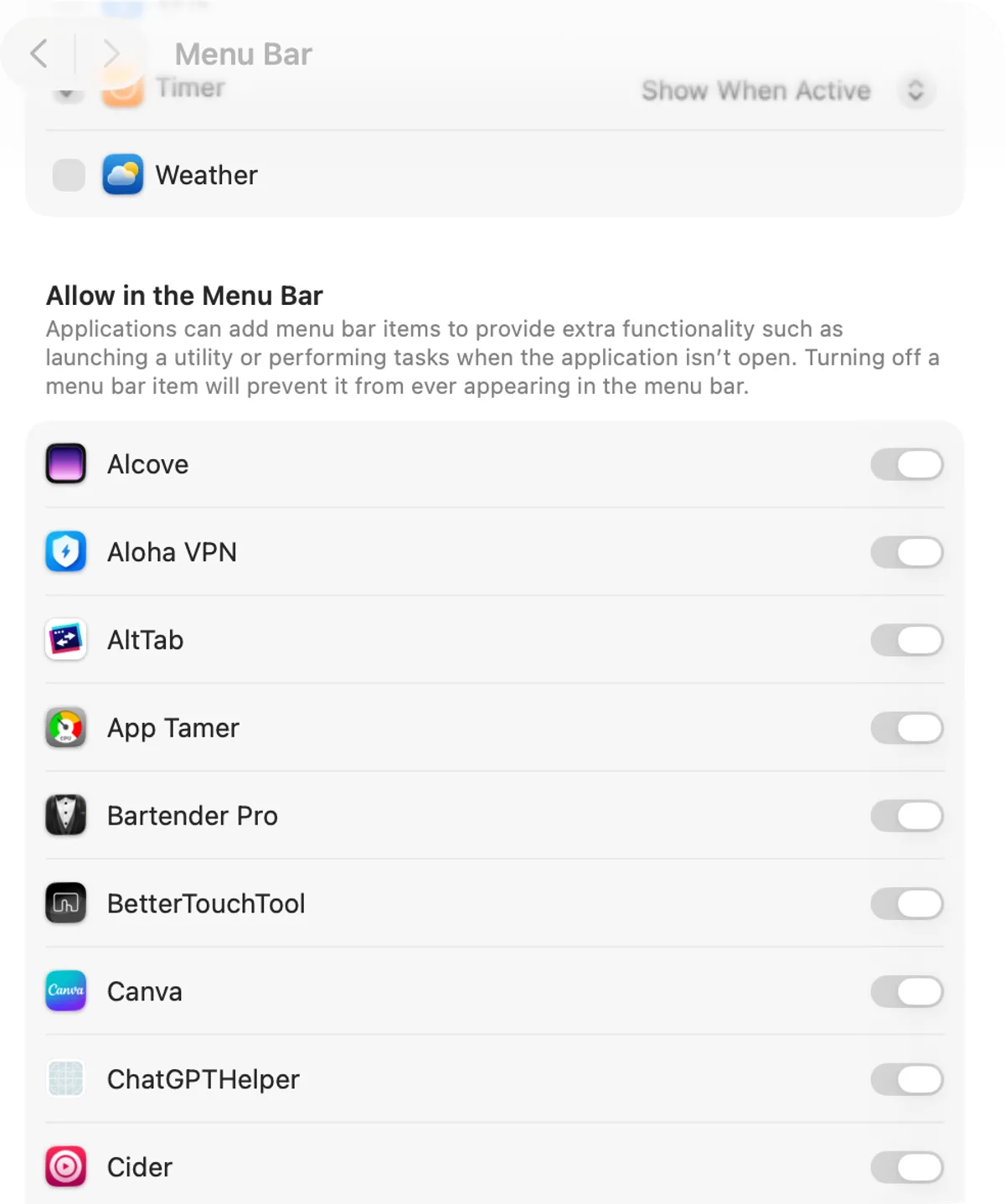
- On macOS 26 Tahoe and macOS 27, turn off the items you do not need in System Settings › Menu Bar, under Menu Bar Controls and Allow in the Menu Bar; the second has a switch for each third-party app. An app whose switch is off never puts its icon in the bar, so that list is also the first place to look when one icon has vanished on its own.
- On macOS 27, a « button can appear to the left of the status items. Its name is Show Hidden Menu Bar Items, and clicking it shows the items macOS has hidden.
To keep many icons without losing any behind the notch, a menu bar manager such as Ice or Bartender hides some of them and shows them on demand; the best menu bar apps for macOS Tahoe compares them.
FAQ
Why does my Mac's menu bar keep disappearing?
It is set to hide itself. On macOS 26 Tahoe and macOS 27, set System Settings › Menu Bar › Automatically hide and show the menu bar to Never; on macOS 15 Sequoia the same setting is in System Settings › Control Center.
How do I show the menu bar in full screen?
Move the pointer to the top of the screen and the bar slides in. To keep it on screen in full-screen apps as well, set Automatically hide and show the menu bar to Never.
Why are some menu bar icons missing on my MacBook?
On a MacBook with a notch, menu bar items can end up hidden behind the camera. On macOS 26 Tahoe and macOS 27, turn off the ones you do not need in System Settings › Menu Bar, or group them with a menu bar manager.