
How to change the menu bar color on a Mac
Updated September 5, 2026
The menu bar takes its color from whatever is behind it. On macOS 26 Tahoe it has no background at all, so the wallpaper or the window under it shows straight through; on earlier releases it was a tinted blur of the wallpaper. Either way, System Settings has no color picker for it. There are four ways to change what you see, from free and rough to exact.
Option 1: Light or Dark appearance
System Settings › Appearance › Light, Dark or Auto. This decides whether the bar’s text and icons are dark or light, and with Show menu bar background turned on (System Settings › Menu Bar) it decides whether the blurred strip reads as light or dark too. It is the coarsest control there is — two choices, and only about the text.
Option 2: Change what is behind it
Because the bar shows what is under it, a wallpaper with a colored top strip gives you a colored bar over the desktop. The open-source tool ChangeMenuBarColor, on GitHub, automates exactly this by adding a band of your color to the top of the wallpaper. Two limits: it works only while the desktop is showing, since a window under the bar replaces the wallpaper; and on Tahoe with the background off, the strip is simply visible through the clear bar rather than tinting it.
Option 3: Reduce transparency
System Settings › Accessibility › Display › Reduce transparency replaces every translucent surface with a flat one, the menu bar included. You get an opaque, even bar — light gray in Light appearance, dark gray in Dark — with no say in the shade. If what you wanted was a plain, readable bar, this is the setting; if you wanted a color, keep reading.
Option 4: Pick any color with Dynamic Menu Bar
Dynamic Menu Bar paints its own layer beneath the bar’s text and icons, and that layer can be any color, a gradient, or a live reflection of the screen. Here is the same Safari window before and after; the home page has a slider to compare nine apps.
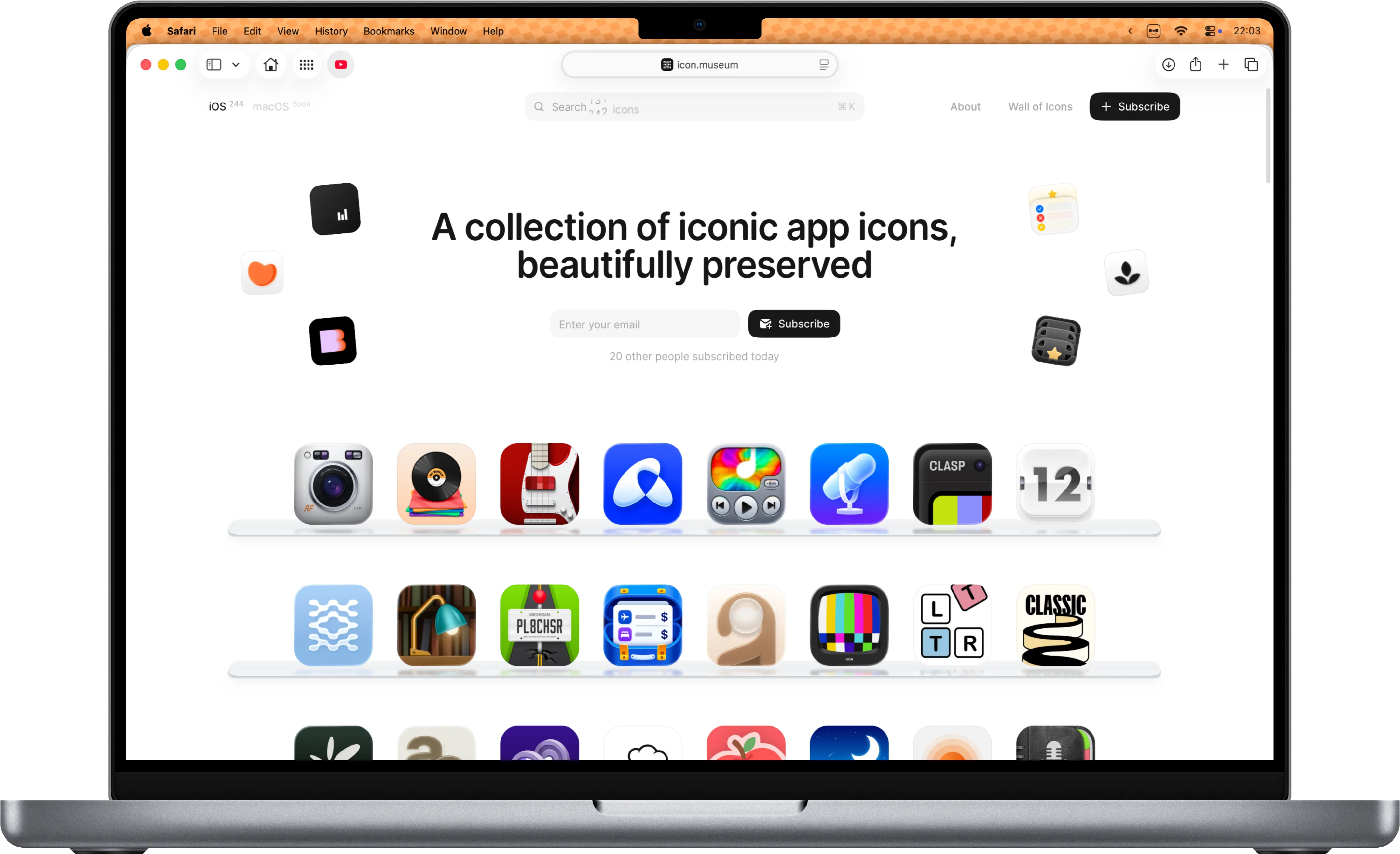
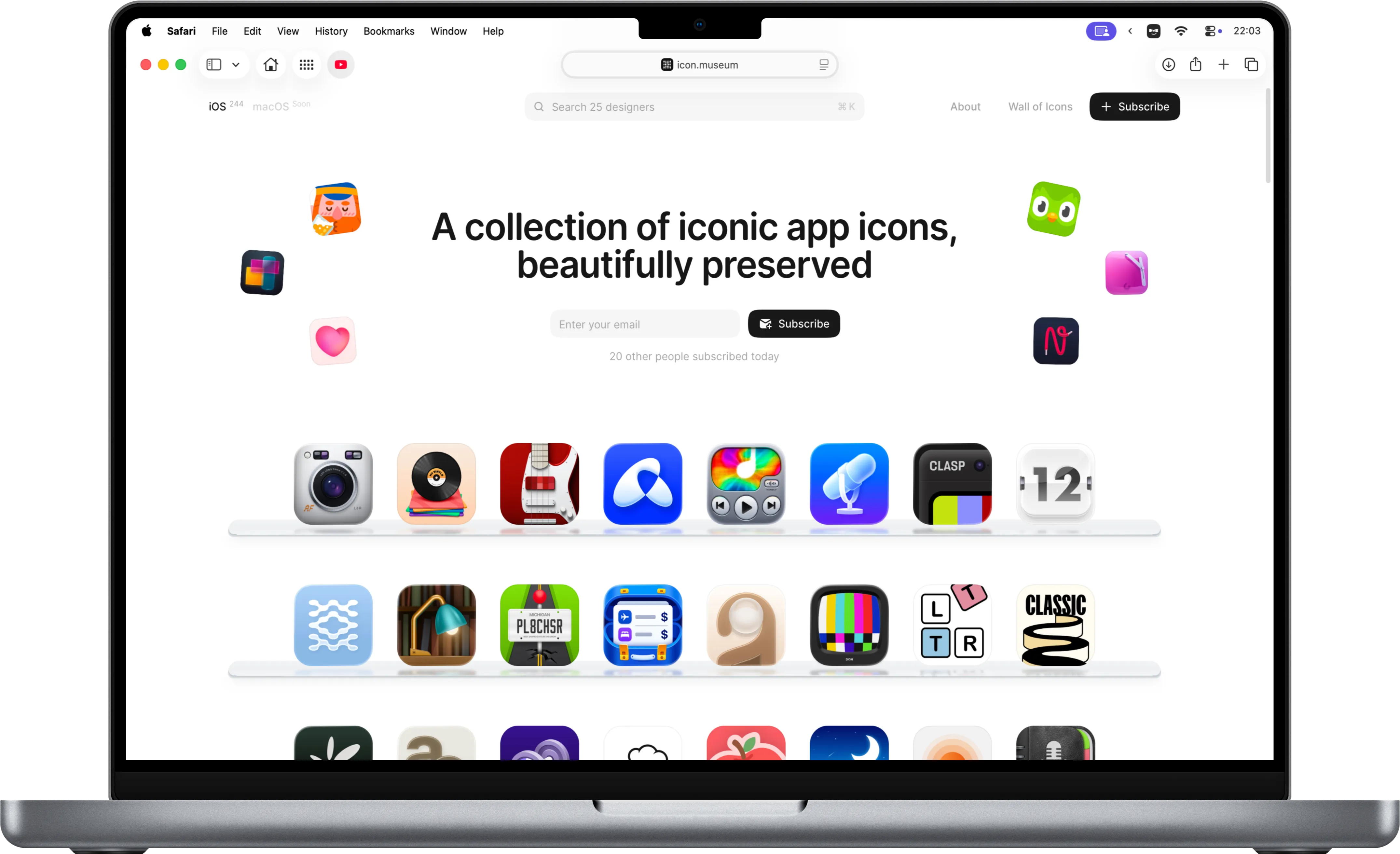
- Download the app, drag it to Applications and open it. The welcome tour starts a free 7-day trial; the app is notarized by Apple, so there is no warning to click through.
- Open Settings › Appearance and choose Solid. Pick a color, or turn on auto-sample to take it from the screen.
- For a gradient, choose Multicolor and add up to 10 color stops; turn on the transition to blend them.
- For a bar that changes over time, turn on Hue drift: Uniform cycles the whole bar through the rainbow or your palette, Scroll sweeps it across in a direction, both at a speed you set.
- For a bar that matches the content, choose Live: it mirrors the screen just under the bar as vertical color bands, at 10 to 120 frames a second. macOS asks for Screen Recording permission the first time, since that is how the app reads the pixels. 15 is the default rate; 10 is easiest on battery.
- Soften any of them with Fade (separate opacity at the top and bottom) or Background blur.
- Give Safari, Figma and Music their own colors with per-app profiles, and put a global shortcut on the master switch so one key turns it all off for a screenshot.
Settings › Appearance also holds the corners, the pill shape and the light beam; the features page lists every option, and there is a guide to making the bar transparent or solid if that is the goal rather than a color.
Dark mode, light mode and legibility
macOS decides whether the bar’s text is dark or light, and Dynamic Menu Bar leaves the text alone: it paints beneath it. So pair a dark bar color with Dark appearance and a light one with Light, or let Auto switch both in the evening; per-app profiles can hold a color for each. If a chosen color fights the text, a little Background blur, or a lower opacity at the top of a Fade, pulls the two apart.
FAQ
Can you change the menu bar color on a Mac without an app?
Only indirectly: switch Light or Dark appearance, change the wallpaper, or turn on Reduce transparency for a plain gray bar. System Settings has no color picker for the menu bar.
Why does my menu bar color change on its own?
Because the bar shows what is behind it — on macOS 26 Tahoe it is transparent — so a new wallpaper, a window moved under it or a switch to Dark appearance changes it. A fixed Solid color in Dynamic Menu Bar stops that.
Can I make the menu bar a gradient?
Not with Apple's settings. Dynamic Menu Bar's Multicolor style blends up to 10 color stops, and Hue drift can cycle them slowly.
Does changing the bar's color affect the text and icons?
No. Dynamic Menu Bar draws beneath them and leaves them to macOS, which decides on light or dark text on its own. Pair dark colors with Dark appearance and light colors with Light for the best contrast.